How to Transfer Data From PS4 to PS5
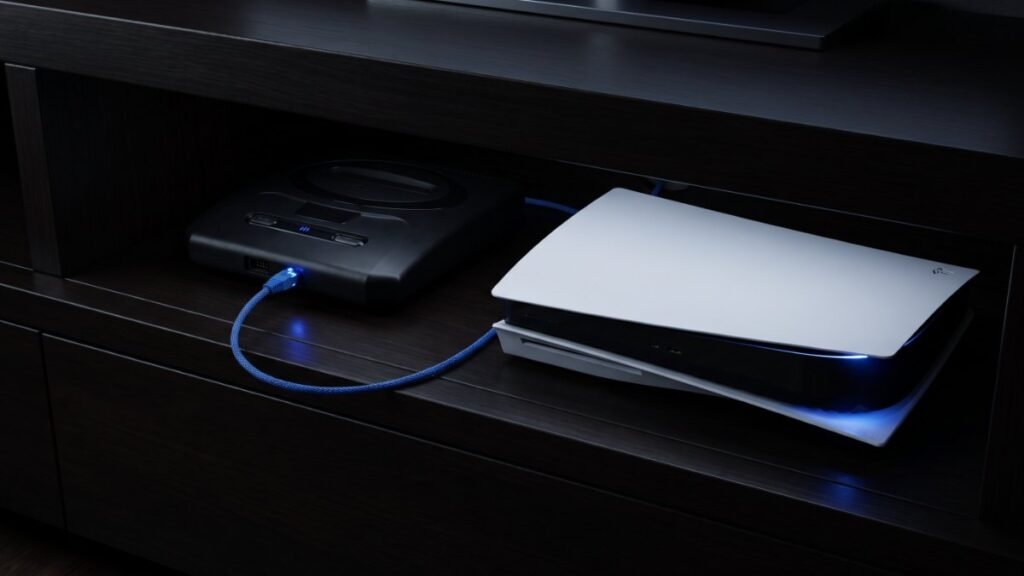
The easiest way to move data from a PS4 to a PS5 is the built-in Data Transfer tool. Put both consoles on the same network, then on the PS5 go to Settings > System > System Software > Data Transfer. You can also use PlayStation Plus cloud saves, a USB drive, or simply redownload your games.
Prepare both consoles
- Sign in to the same account on the PS4 and the PS5.
- Update the system software on both consoles to the latest version.
- Sync your trophies manually on the PS4.
- Connect both consoles to the same network, over Wi-Fi or with LAN cables. If both are already wired to your router, you don’t need a cable between them.
- Connect the PS5 to your TV with HDMI. The PS4 doesn’t need a TV connection.
- Plug both consoles into power.
Before you move every PS4 game across, check how much room you’ll need for new releases. GTA 6 alone is expected to take a big chunk of a PS5’s SSD, see our GTA 6 file size guide.
Transfer over Wi-Fi or LAN
- Leave the PS4 turned on.
- On the PS5 home screen, select Settings > System > System Software.
- Select Data Transfer > Continue.
- Follow the on-screen steps to choose what to copy.
- The PS5 restarts on its own. You can use it after the restart while game data keeps transferring. Check progress under Downloads/Uploads in the control center.
Don’t turn off either console, change network settings, or run a connection test while the transfer runs. You can only transfer from one source console to one destination console at a time.
What transfers and what doesn’t
| Data | From PS4 after initial PS5 setup |
|---|---|
| Saved data | Yes, for the signed-in user |
| Games playable on PS5 | Yes |
| User and account info, console settings | Only during the PS5’s first-time setup |
| Game or saved data already on the PS5 | Not overwritten |
Other ways to move your stuff
- Cloud saves: PlayStation Plus members can upload PS4 saves to cloud storage and download them on the PS5.
- USB drive for saves: Copy PS4 saves to a USB drive on the PS4. On the PS5, go to Settings > Saved Data and Game/App Settings > Saved Data (PS4) > Copy or Delete from USB Drive, pick the game, check the files, and select Copy. The PS4 menu labels may vary by system software.
- USB extended storage for games: If your PS4 games live on a USB extended storage drive, plug that drive into the PS5 to access them.
- Discs and digital games: Insert a disc to install it, or download digital games from your game library on the PS5.
Note that PS5 saved data can’t be copied to a USB drive. It only backs up to cloud storage with PlayStation Plus. If you’re clearing room on the new console for a big download, see how to preload GTA 6.
FAQ
Do I need a LAN cable to transfer from PS4 to PS5?
No. Sony says Wi-Fi works as long as both consoles are on the same network. A LAN cable is optional.
Can I use my PS5 while the transfer runs?
Yes. After the PS5 restarts you can use it, but some game data may still be transferring in the background.
Will the transfer overwrite saves already on my PS5?
No. Sony says game and saved data already on the destination console is not transferred over.
Can I transfer my PS5 saves to a USB stick?
No. Sony says PS5 saved data can’t be copied to USB. Use PlayStation Plus cloud storage instead.
Sources: PlayStation Support: Transfer data to PS5, PlayStation Support: Manage storage space