How to Use PS Remote Play on Your Phone
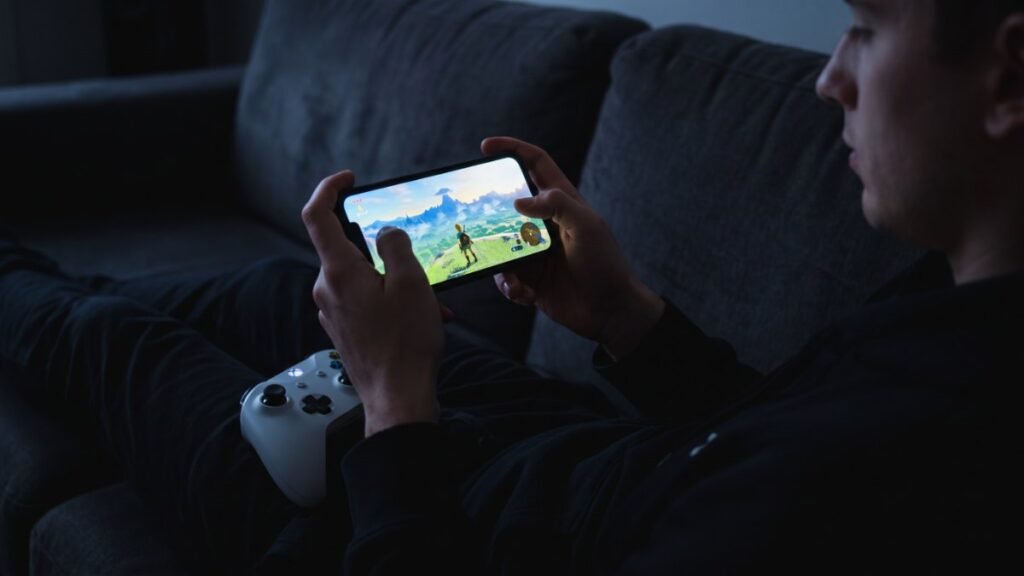
To use PS Remote Play on your phone, turn on Enable Remote Play on your PS5, install the PS Remote Play app on your iPhone or Android phone, sign in with the same PlayStation account, and select PS5. Sony recommends at least 5 Mbps upload and download, and 15 Mbps or more for the best results.
What you need
| Item | Details |
|---|---|
| iPhone or iPad | iOS 14 or later (iOS 14.5 or later to use a DualSense) |
| Android phone or tablet | Android 9 or later for touch controls; Android 10+ for DUALSHOCK 4; Android 12+ for DualSense |
| Console | PS5 updated to the latest system software |
| Account | The same PlayStation account used on the console |
| Internet | At least 5 Mbps up and down; 15 Mbps or more recommended |
| Controller (optional) | DualSense, DualSense Edge, or DUALSHOCK 4 |
Sony warns that Remote Play uses much more data than most streaming services, so watch your mobile data cap. Sony also says games that need a VR headset or other extra peripherals don’t work with Remote Play. OS requirements can change, so check the app listing if your phone is older.
Step 1: Set up your PS5 (one time)
- Go to Settings > System > Remote Play.
- Turn on Enable Remote Play. This is set per user.
- To start Remote Play while the PS5 is in rest mode, go to Settings > System > Power Saving > Features Available in Rest Mode.
- Turn on Stay Connected to the Internet and Enable Turning on PS5 from Network.
Step 2: Set up the app (one time)
- Download PS Remote Play from Google Play or the App Store.
- Open the app, select Sign In, and sign in with your console’s account.
- Optional: to stream over cellular, tap Settings in the upper right, then Mobile Data > Use Mobile Data, and confirm with OK. The app uses Wi-Fi automatically when it’s available.
Step 3: Connect each time
- Turn on your PS5 or put it in rest mode.
- Open PS Remote Play and select PS5.
- The app finds and connects to your console. If it finds more than one, pick the one you want.
Tips for a smoother stream
- Plug your PS5 into the router with a LAN cable if you can. It takes one variable out of the picture.
- Pair a controller with your phone. Touch controls work, but a DualSense is far easier for long sessions.
- Use a mic for voice chat. Your phone’s built-in mic works.
- Keep large downloads paused while you stream. If you’re planning a long download for launch night, read when GTA 6 unlocks and how to preload GTA 6 first.
FAQ
Can I use Remote Play on mobile data?
Yes. Turn on Use Mobile Data in the app’s settings. Sony warns it uses a lot of data, so check your plan’s limit.
Do I need a controller?
No. The app has on-screen controls, but Sony supports DualSense, DualSense Edge, and DUALSHOCK 4 controllers for a better experience.
Can I start Remote Play when the PS5 is in rest mode?
Yes, if you turn on Stay Connected to the Internet and Enable Turning on PS5 from Network under Features Available in Rest Mode.
What internet speed do I need?
Sony recommends at least 5 Mbps upload and download, and at least 15 Mbps for the best performance.
Sources: PlayStation Support: PS Remote Play on mobile, PlayStation: PS Remote Play