How to Free Up Storage Space on PS5 (Step by Step)
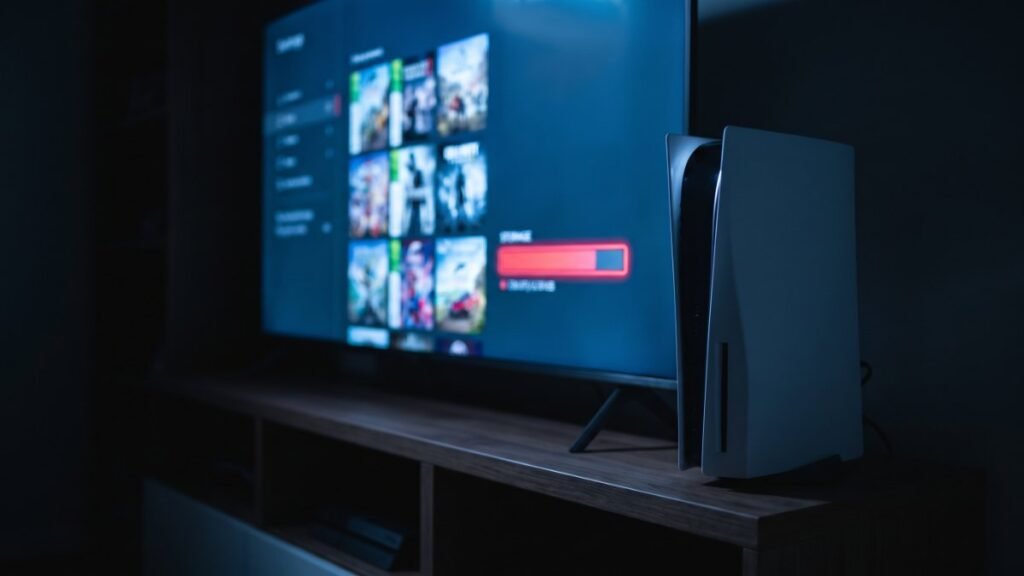
To free up storage on PS5, go to Settings > Storage to see what’s using space, then delete or move the largest games under Console Storage > Games and Apps. Moving games to a USB drive or an M.2 SSD saves you from deleting them. Here’s the order we’d follow.
If you’re clearing room for GTA 6, check our GTA 6 file size page first so you know how much space to aim for.
Step 1: See what’s using your space
- From the home screen, open Settings.
- Select Storage.
- Look at the breakdown. Games and apps are almost always the biggest part.
Step 2: Delete games and apps you aren’t playing
- Go to Settings > Storage > Console Storage > Games and Apps.
- Select the items you want to remove.
- Select Delete.
Deleting a game does not remove your purchase. You can download it again from your game library. Your saved data is stored separately, so deleting a game doesn’t delete its saves.
Step 3: Trim game components
Some games split their data into parts, such as single-player and multiplayer. If you see Customize next to a game’s name in storage, select it to manage which parts stay installed. Removing a mode you never play can free a lot of space without deleting the whole game.
Once you have enough room, you can set up your download early. Our guide on how to preload GTA 6 walks through it.
Step 4: Move games instead of deleting them
| Option | Play from it? | Best for |
|---|---|---|
| USB extended storage (250 GB to 8 TB, SuperSpeed USB 5 Gbps or faster) | PS4 games only. PS5 games must be copied back first. | Parking PS5 games you’ll play again later |
| M.2 SSD (internal slot) | Yes, PS5 and PS4 games | Adding real, playable space |
To move a game, go to your Game Library, highlight the game, press the Options button, and select Move Games and Apps. If you have both a USB drive and an M.2 SSD, pick the right tab first. To bring a PS5 game back from USB, open the Installed tab in your Game Library, highlight it, press Options, and select Copy. Sony also says the USB drive must plug straight into the console, not through a hub.
Step 5: Clean up saved data
- Go to Settings > Saved Data and Game/App Settings.
- Select Saved Data (PS5) or Saved Data (PS4).
- Select Upload or Delete from Console Storage and remove saves for games you’re done with.
Saves are small, so this rarely frees much space. Back up anything you care about first. PlayStation Plus members can upload saves to cloud storage from the same menu, and PS4 saves can also be copied to a USB drive.
Step 6: Clear old screenshots and clips
Video clips can add up. Sony’s storage page doesn’t list exact delete steps for the media gallery, and the menu may vary by system software, so open your media gallery and look for the delete or select option there. Sony does note that media copied to a USB drive can’t be copied back to the console, so treat a USB copy as a one-way backup.
FAQ
Does deleting a PS5 game delete my save?
No. Saved data is managed separately under Settings > Saved Data and Game/App Settings. Deleting the game leaves the save in place.
Can I play PS5 games from an external USB drive?
No. Sony says PS5 games can only be stored on USB extended storage. You must copy them back to console storage or an M.2 SSD to play.
Why is there less free space than my console’s listed size?
Part of the built-in SSD is reserved for the system software, so the space you can use is smaller than the number on the box.
What’s the fastest way to get a lot of space back?
Delete or move your two or three largest games. Saved data and screenshots rarely take up as much space.
Sources: PlayStation Support: Manage storage space, PlayStation Support: USB extended storage, PlayStation Support: Add an M.2 SSD