How to Install an M.2 SSD in a PS5, PS5 Slim, or PS5 Pro
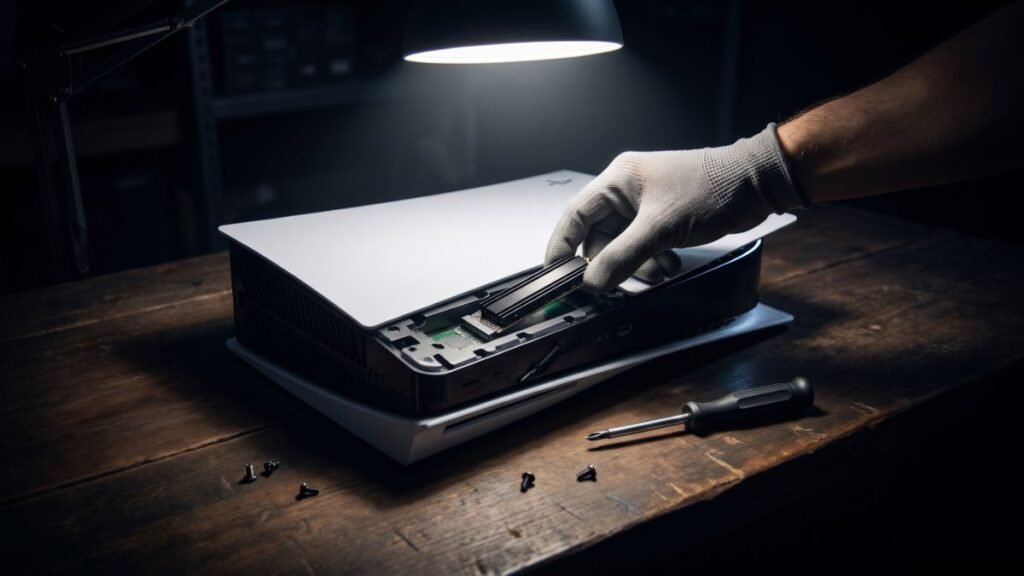
Yes, you can add an M.2 SSD to any PS5, including the PS5 Slim and PS5 Pro. Sony requires a PCIe Gen4 x4 NVMe drive between 250 GB and 8 TB, with a heatsink, and recommends a read speed of 5,500 MB/s or faster. The install takes a #1 Phillips screwdriver and a few minutes, and then the console formats the drive for you.
With big games like GTA 6 (around 210 GB on PS5 based on unofficial store data, see our GTA 6 file size guide), an extra SSD is the cleanest way to stop deleting games every month.
Official M.2 SSD requirements
| Spec | Sony’s requirement |
|---|---|
| Interface | PCI-Express Gen4 x4 NVMe, Key M (Socket 3). SATA M.2 drives are not supported. |
| Capacity | 250 GB to 8 TB |
| Form factor | 2230, 2242, 2260, 2280, or 22110 |
| Read speed | 5,500 MB/s or faster recommended |
| Cooling | Heatsink or heat transfer sheet required. Don’t add a second heatsink to a drive that already has one. |
| Size with cooling | Up to 25 mm wide and 11.25 mm thick in total (up to 8 mm above the board and 2.45 mm below) |
Sony also notes that some games may not run as well from the M.2 drive as from the built-in SSD, even with a fast drive.
Which model group is your PS5?
Sony splits the steps into two groups. The CFI-1000 group is the original launch-style PS5. The CFI-2000/7000 group covers the newer slimmer PS5 and the PS5 Pro. Check the model number on the label of your console before you start.
Before you start
- Update your PS5 system software to the latest version.
- Turn the console off fully (not rest mode), unplug all cables, and let it cool.
- Work on a flat, well-lit table. Touch a grounded metal object to discharge static.
- Have a #1 Phillips (cross-head) screwdriver ready. A small flashlight helps.
Install steps: PS5 Slim and PS5 Pro (CFI-2000/7000)
- Remove the triangle cover.
- Remove the screw from the expansion slot cover, then remove the cover.
- Remove the screw and spacer. Move the spacer to the hole that matches your SSD’s length.
- Line up the notch on the SSD with the connector, tilt it diagonally upward, and push it all the way in.
- Tilt the SSD down and fasten it with the screw.
- Put the expansion slot cover back and screw it in, then reattach the triangle cover.
- Reattach the feet, reconnect the cables, and turn on the console. The formatting guide appears.
Install steps: original PS5 (CFI-1000)
- Remove the base. Place the console with the PlayStation logo facing down and the power button facing you.
- Lift the top-left corner of the cover, pull slightly up and to the right, and slide the cover off.
- Remove the screw on the long rectangular expansion slot cover and take the cover off.
- Remove the screw, move the spacer to the groove for your SSD’s size, and insert the SSD diagonally until it’s fully seated.
- Tilt the SSD down, fasten the screw, and reattach the slot cover. If it won’t close, the heatsink is too big.
- Slide the console cover back until it clicks, reattach the base and cables, and power on to format.
Format the drive and pick an install location
The formatting guide appears on first boot. Formatting erases everything on the SSD, and you must format the whole drive. Don’t turn off the power while it runs. After that, set new downloads to go to the M.2 drive in Settings > Storage > Installation Location. To move games you already have, highlight a game in your Game Library, press Options, and select Move Games and Apps. Do this before a big launch so a preload doesn’t stall on low space. See how to preload GTA 6.
FAQ
Does the PS5 Pro support M.2 SSD expansion?
Yes. Sony’s guide includes the CFI-7000 model group (PS5 Pro) alongside the CFI-2000 group, with the same install steps.
Do I really need a heatsink?
Yes. Sony says a heatsink or heat transfer sheet is required, and you should not run the console without one.
Can I play PS5 games from a USB drive instead?
No. Sony says PS5 games can only be stored on USB extended storage, not played from it. Only PS4 games can be played from USB.
Will my M.2 SSD work if I move it to another PS5?
Yes. Sony says you don’t need to reformat it. Sign in with the same account on the new console to access the data.
Sources: PlayStation Support: Add an M.2 SSD, PlayStation Support: USB extended storage